Ergonomic Desk Setup to Prevent Sciatica Flare-Ups at Work
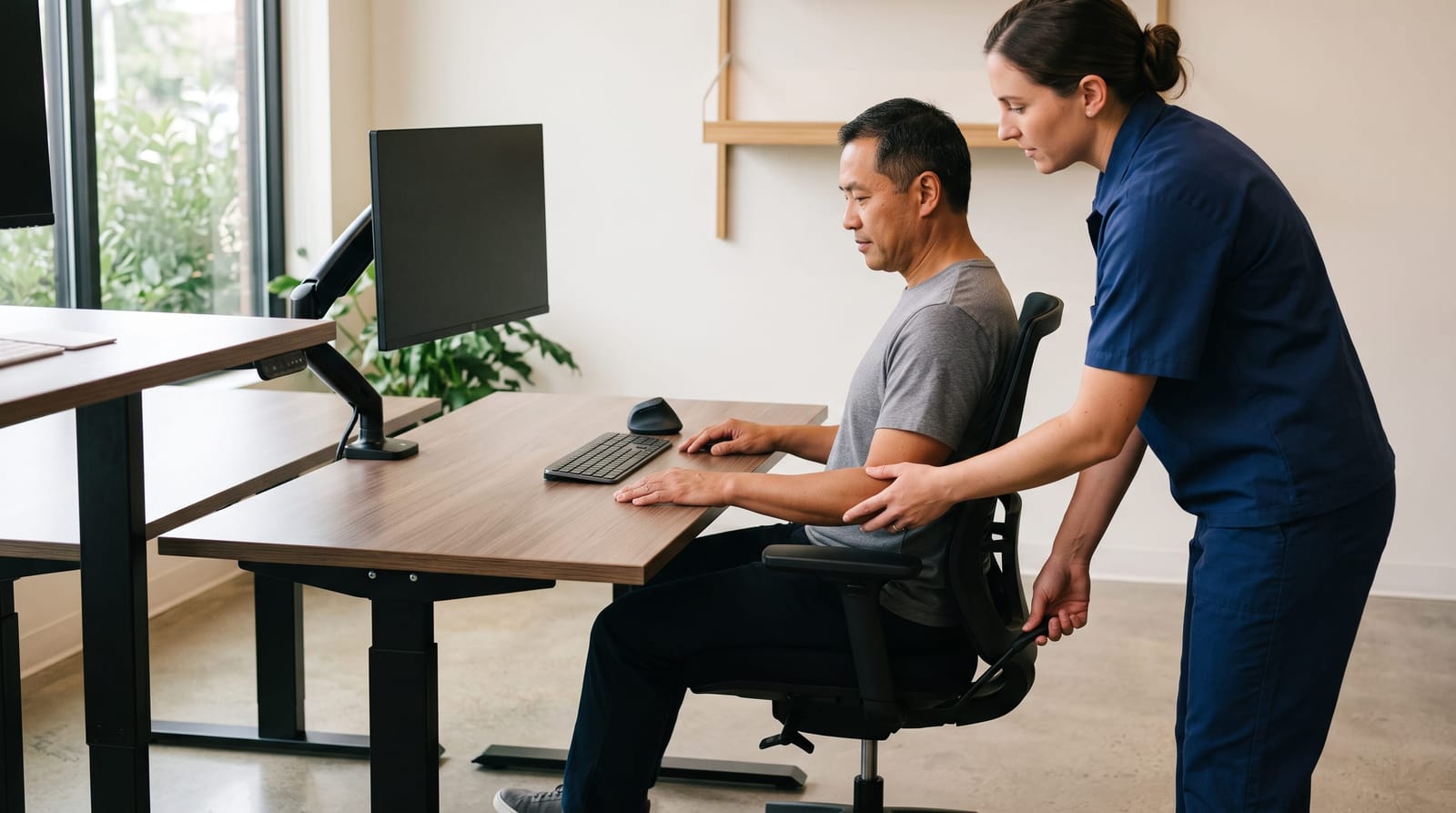
An ergonomic desk setup starts with a supportive chair, supported feet, a keyboard and mouse within easy reach, and a screen you can read comfortably. These adjustments help the workstation fit you, but they cannot guarantee prevention of sciatica flare-ups. The most useful starting point is to identify what makes your everyday tasks awkward before buying new equipment.
For people navigating daily living with sciatica, workstation design is separate from treatment. Your symptoms and health history need individual consideration. Our team at Prodigy Chiro Care & Spinal Decompression in Santa Monica can evaluate your symptoms and discuss your care needs.
Step 1: Identify What the Workstation Makes Difficult
Look at the workspace during your usual tasks. Does typing require reaching forward? Are your feet unsupported? Does small text draw you closer to the screen? These observations reveal specific fit problems and are more useful than simply labeling your posture “bad.”
- Identify your main task: Video meetings, typing, and document review place different demands on screen and accessory placement.
- Notice repeated reaching: Check where the mouse, phone, and frequently used documents sit.
- Check legroom: Storage boxes, drawers, and computer equipment can prevent the chair from moving close enough to the desk.
- Find adjustment limits: Note whether the chair, desk, and monitor can move independently.
Start with the clearest obstacle. If a stack of papers pushes the mouse out of reach, reorganizing the surface is more relevant than replacing the chair.
Step 2: Fit the Chair and Foot Support Together
A useful starting point is a chair that supports your lower back, with your feet resting on the floor or a stable footrest. Chair height also needs to work with the keyboard height. Adjusting one without checking the other can trade one awkward position for another.
- Height adjustment: Can you reach the keyboard comfortably while keeping your feet supported?
- Backrest position: Can you use the backrest without leaning forward to type?
- Seat depth: Is there space behind your knees rather than pressure from the seat edge?
- Armrest clearance: Can the chair move close to the desk without the armrests blocking it?
For example, at a fixed-height desk, raising the chair may bring your arms to a more comfortable typing height but leave your feet dangling. A footrest can solve that fit problem without replacing the desk. If the seat is too deep to use the backrest comfortably, however, a footrest alone will not resolve the mismatch.
Step 3: Bring the Keyboard and Mouse Within Reach
Common ergonomic reference points include relaxed shoulders, elbows near the body, and wrists relatively straight while typing. Check these together rather than trying to achieve one exact angle.
Place the mouse beside the keyboard instead of far forward or beyond papers and accessories. Thick desk edges and armrests can also interfere with getting close enough to the work surface.
Keyboard size involves a practical tradeoff. A compact keyboard leaves more room for the mouse, while a full-size keyboard may be more convenient for frequent number entry. Choose based on the task and available space, not just an “ergonomic” product label. A wrist support does not solve a keyboard that remains too far away.
Step 4: Position Screens Around the Work You Do
Positioning the top of the main display at or slightly below eye level is a common starting point. Viewing distance, text size, and glare also matter. A screen on a stand is not a good fit if you still lean forward to read it.
- One primary monitor: Keep your main work directly ahead rather than off to one side.
- Two monitors: Center the screen you use most. If you use both equally, arrange them together in front of you rather than placing one far to the side.
- Laptop workstation: A separate keyboard and mouse allow screen height to change independently of typing height.
- Document-heavy work: Keep frequently referenced material near the main viewing area to limit repeated looking down or turning.
Before moving a monitor closer, check whether larger text makes it easier to read. For a laptop, raising the entire device without adding separate input devices may improve viewing height while making typing awkward.
Step 5: Make the Setup Adaptable, Not Rigid
A workstation does not need to hold you in one exact position all day. Clear legroom and accessible controls make it easier to readjust the setup as tasks change.
A sit-stand desk provides another working height, but standing is not automatically more comfortable than sitting. Its practical value depends on whether both configurations fit. A seated arrangement can become awkward when raised if the monitor is too low or the keyboard is too high.
For shared desks and hybrid work, keep a short setup note with your chair setting, monitor position, and accessories. A photograph can also help you recreate the arrangement, although the real check is how well it fits when you begin working.
Step 6: Separate Desk Accessories From Clinical Services
A footrest and custom orthotics serve different purposes. A footrest supports your feet while seated. Custom orthotics are individually made shoe inserts, not a substitute for adjusting chair height or clearing legroom.
We offer custom orthotics and postural re-education. Postural re-education addresses positioning and movement habits; it is not about maintaining one perfect posture throughout the workday. Useful questions during a clinical assessment include what a service is intended to address, how it relates to your daily activities, and what its limitations are.
Common Workstation Questions
Is an expensive desk necessary?
Not necessarily. Repositioning equipment, clearing legroom, or adjusting an existing chair may address the main fit problem. New equipment is most useful when it solves a specific limitation, such as insufficient chair adjustment or a laptop screen that cannot move independently of its keyboard.
What does an “ergonomic” chair label tell me?
The label alone does not tell you whether a chair fits your body or desk. Compare usable adjustments, seat depth, back support, and armrest clearance. A chair with many features can still be a poor match if those features do not adjust where you need them.
Does workstation design cover comfort outside working hours?
No. A workstation review addresses desk tasks, seating, and equipment placement. Sleep involves a different environment and different positioning questions, explored in Sciatica and Sleep: Best Sleeping Positions to Reduce Night Pain.
Check the Whole Setup After Each Change
After adjusting one component, return to a normal work task and check the others. Raising the chair may change foot support. Moving the keyboard may affect mouse reach. Raising a laptop may change typing height. The goal is a workstation whose parts work together, with fewer awkward reaches and enough flexibility for the work you actually do.